Screenshots and PDFs
Capture what the page looks like: a full-page or element screenshot, or the whole page as a PDF. Pydoll drives Chrome's own rendering, so the output matches what the browser shows, and you don't run a separate rendering tool.
Screenshot the page
Call take_screenshot() with a file path. The extension sets the format.
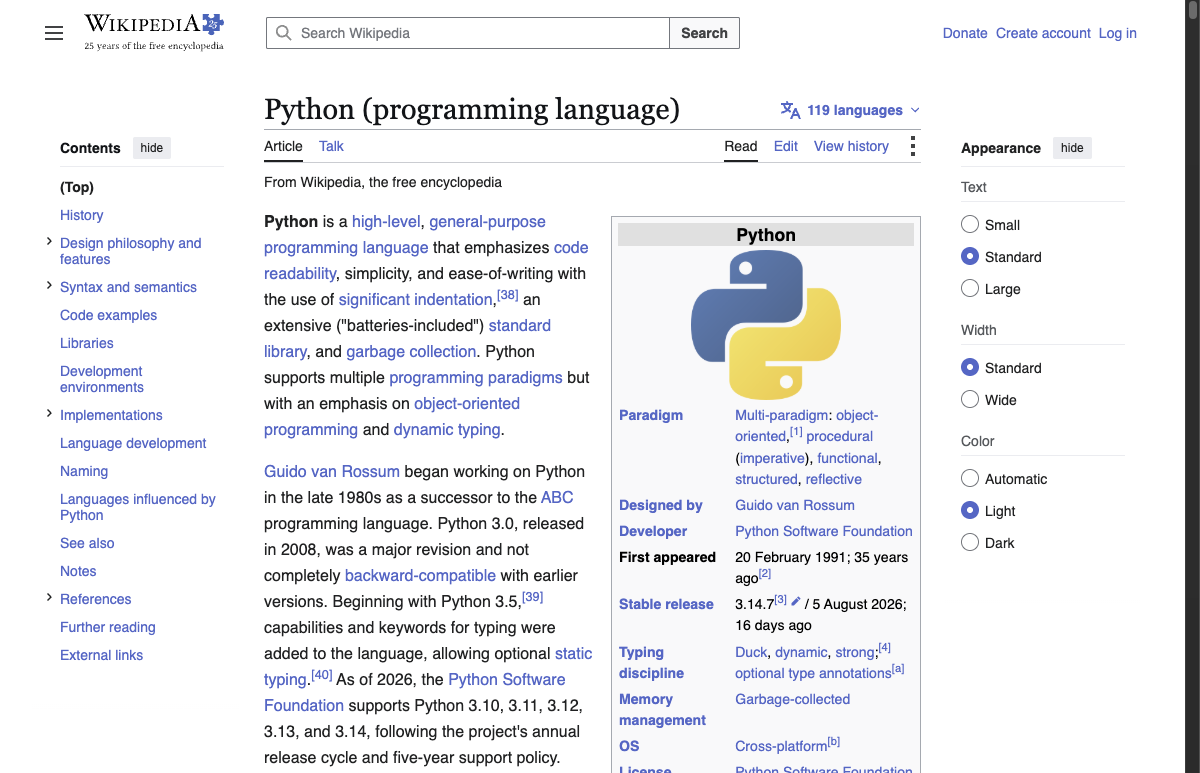
The python.png this produces, the Wikipedia article as Pydoll captured it.
Choose the format
The format follows the file extension: PNG (lossless), JPEG (smaller, lossy), or WebP. quality runs from 0 to 100 and applies to the lossy formats.
Format comes from the extension
An unsupported extension raises InvalidFileExtension. Both .jpg and .jpeg work; .jpg is normalized to .jpeg internally.
Capture the full scrollable page
By default you get the visible viewport. Pass beyond_viewport=True to capture everything below the fold, all the way down.
Long pages cost memory
On very long pages, beyond_viewport=True takes longer and uses more memory, because the whole page is rendered at once.
Get the image in memory
Pass as_base64=True to get a base64 string back instead of writing a file. Use it to embed the image or send it somewhere, with no temp file to clean up.
Screenshot a single element
Call take_screenshot() on an element to capture only that element. Pydoll scrolls it into view first.
This is also how you capture content inside an iframe: tab.take_screenshot() only sees the top-level page, so find an element inside the frame and screenshot that instead.
tab.take_screenshot() |
element.take_screenshot() |
|
|---|---|---|
| Scope | Viewport or full page | One element |
beyond_viewport |
Yes | Not applicable |
as_base64 |
Yes | Yes |
| Scrolls into view | No | Yes |
| Reaches iframe content | No | Yes |
Export the page as a PDF
print_to_pdf() renders the page through Chrome's print pipeline. Pass a path, or as_base64=True for the bytes in memory.
Control the output
| Parameter | Default | What it does |
|---|---|---|
path |
None |
Where to save. Required unless as_base64=True. |
landscape |
False |
Landscape orientation instead of portrait. |
display_header_footer |
False |
Add Chrome's title, URL, and page numbers. |
print_background |
True |
Include background graphics and colors. |
scale |
1.0 |
Zoom factor, 0.1 to 2.0. Below 1.0 fits more per page. |
as_base64 |
False |
Return a base64 string instead of writing a file. |
# landscape report with header and footer, slightly shrunk
tab.print_to_pdf(
    Path('report.pdf'),
    landscape=True,
    display_header_footer=True,
    scale=0.9,
)

# ink-friendly: no background graphics
tab.print_to_pdf(Path('draft.pdf'), print_background=False)

# bytes in memory, no file
pdf_data = tab.print_to_pdf(as_base64=True)
# landscape report with header and footer, slightly shrunk
await tab.print_to_pdf(
    Path('report.pdf'),
    landscape=True,
    display_header_footer=True,
    scale=0.9,
)

# ink-friendly: no background graphics
await tab.print_to_pdf(Path('draft.pdf'), print_background=False)

# bytes in memory, no file
pdf_data = await tab.print_to_pdf(as_base64=True)
Save a page for offline viewing
save_bundle() writes the page and its assets (CSS, JS, images, fonts, media) into a .zip you can open later. The archive holds an index.html with URLs rewritten to the local files.
Pass inline_assets=True to embed everything into a single self-contained index.html using data URIs and inline <style>/<script> tags:
What gets bundled
Documents, stylesheets, scripts, images, fonts, and media. Resources that failed to load, were canceled, or use data: URIs are skipped.
Handle the common errors
from pydoll.exceptions import InvalidFileExtension, MissingScreenshotPath

# no path and as_base64 is False
try:
    tab.take_screenshot()
except MissingScreenshotPath:
    print('Pass a path, or set as_base64=True.')

# unsupported extension
try:
    tab.take_screenshot('image.bmp')
except InvalidFileExtension as error:
    print(error)
from pydoll.exceptions import InvalidFileExtension, MissingScreenshotPath

# no path and as_base64 is False
try:
    await tab.take_screenshot()
except MissingScreenshotPath:
    print('Pass a path, or set as_base64=True.')

# unsupported extension
try:
    await tab.take_screenshot('image.bmp')
except InvalidFileExtension as error:
    print(error)
What's next
- DOM traversal: find the element you want to screenshot, including inside iframes.
- Iframes: work with frame content in depth.
- Tab API reference: full signatures for
take_screenshot,print_to_pdf, andsave_bundle.